



Explore your data, understand your campaigns, and find the information your teams need through a conversation.
Finding employees without a signature template, understanding campaign targeting, or locating configuration details can require data from several parts of your workspace.
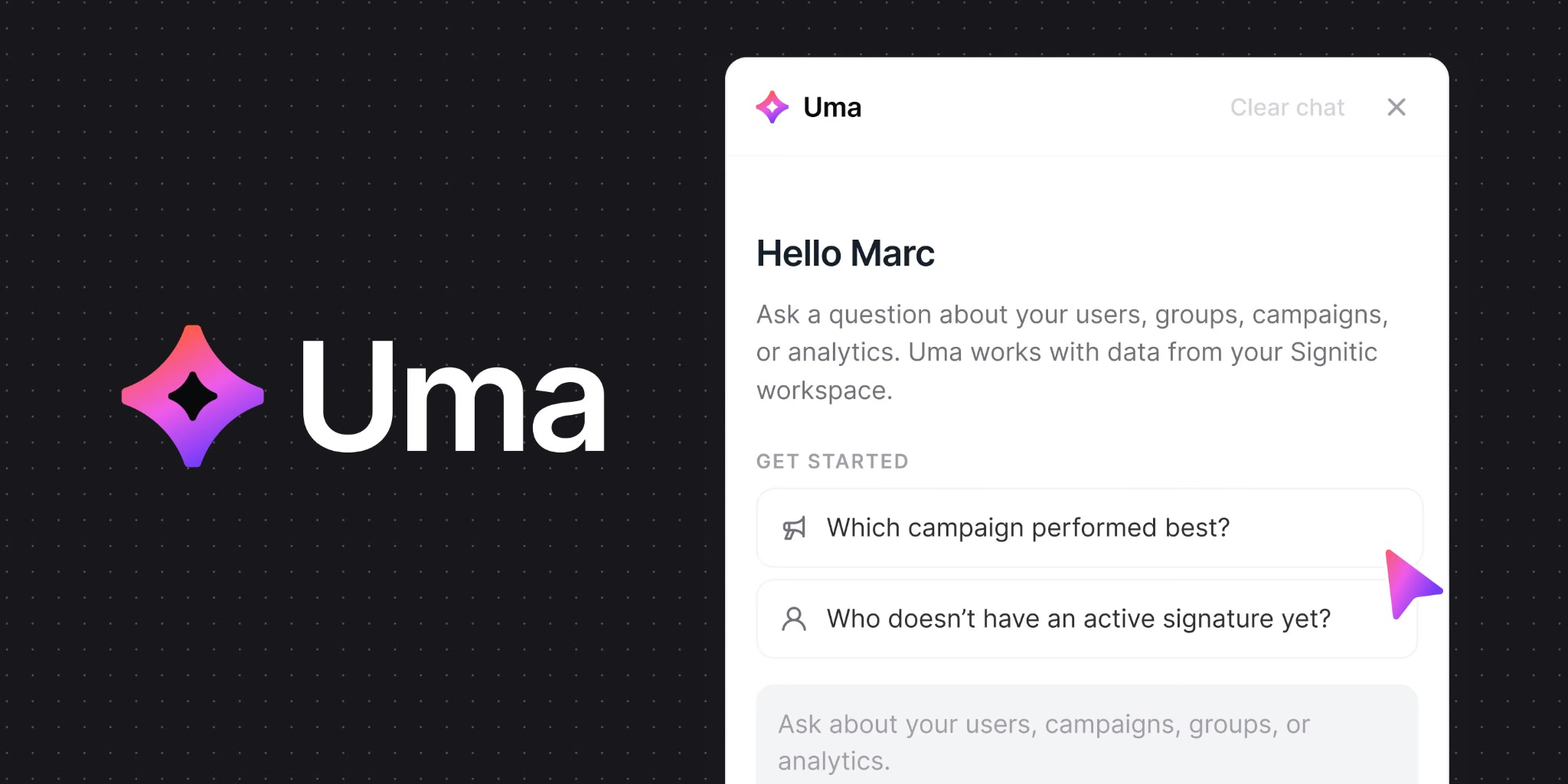
You can now ask UMA, the AI assistant built into Signitic.
UMA uses the data available to your account and the help center to answer you directly in a conversation.
Explore your data and understand your campaigns
With UMA, you can:
- Identify employees who do not have an assigned signature template or whose information is incomplete.
- Review your campaigns and understand which users they target.
- Analyze click rankings and identify when your campaigns receive the most clicks.
- Review the configuration of your users, groups, and campaigns.
- Find help-center articles relevant to your question.
For example, ask: “Which users do not have a signature template?” or “Which campaigns received the most clicks this month?”
To activate UMA:
- Open the UMA panel from its icon in Signitic.
- Review the displayed terms and privacy notice.
- Select the acceptance checkbox, then confirm activation.
Activation requires a role that can change security and role settings. An account with this permission can also disable UMA from your workspace settings.
Your questions remain within the scope of your data and access permissions.
Activation requires a role that can change security and role settings. An account with this permission can also disable UMA from your workspace settings.
Your questions remain within the scope of your data and access permissions.