




support@, sales@, contact@: three addresses, a dozen people behind them, and often a signature that looks like nobody owns it. Getting a clean shared mailbox signature is one of the first questions that comes up when a company decides to centralize its email signatures. Microsoft 365 handles access rights very well. The image those addresses project is another story. This guide explains what actually happens when someone writes from a shared mailbox or an alias, which identity the signature should show, and how to set it up properly with Signitic.
Shared mailbox, alias and delegation: what changes for the email signature
A shared mailbox, an alias and a delegation don't work the same way in Microsoft 365, and the signature depends directly on which one you're dealing with. Before configuring anything, it pays to know which of the three applies to each address.
What a shared mailbox is, and how Send As and Send on Behalf work
A shared mailbox is a mailbox that several people access: a company info address, support, reception. According to Microsoft's documentation on shared mailboxes, it can store up to 50 GB without its own license, but every person who uses it needs their own licensed Exchange Online mailbox. Microsoft also notes that a shared mailbox isn't meant to be signed into directly. Its associated account has a system-generated password that isn't meant to be used. For the security of your organization's mail, Microsoft recommends blocking sign-in for that account and leaving it blocked.
Sending then depends on two permissions. With Send As, the recipient sees the message coming directly from the shared mailbox. With Send on Behalf, they see that the user sent the message on behalf of the mailbox.
Keep in mind that Full Access lets someone open and read the mailbox, not send from it. A user who only has that permission will have their sends rejected.
Email aliases: one more address, not one more account
An email alias is an additional address attached to a user's mailbox. Julie Martin can receive mail at julie.martin@ and at contact@ without having two accounts. The alias holds no personal data of its own, it inherits the data of the primary address.
So the signature question is different from the shared mailbox one. It isn't "who is writing?" (it's always Julie), it's "which signature should appear when Julie writes from contact@?". The options range from a generic sales signature to Julie's signature with a different job title, or simply her usual one. Each holds up, depending on what the alias is used for.
Why Outlook's native signatures fall short for a shared mailbox
In Outlook, each user creates signatures in their own settings. In the new Outlook, Microsoft explains that signatures are set in Settings > Account > signatures, one account at a time (Microsoft support on Outlook signatures). Nothing is centralized.
On a shared mailbox used by eight people, that means eight homemade signatures, eight logos in various states of freshness, and no guarantee the next hire will follow suit. It's exactly what an email signature policy is meant to prevent, and it shows even more because these addresses are often a customer's first point of contact with the company.
Which identity should a shared mailbox signature show?
The identity you choose drives the whole setup. There are two models, and the right one depends on the kind of relationship the team has with the people it writes to.
Generic team signature: the address before the person
A team signature shows the department name ("Customer Service", "Sales Team"), a shared phone number, maybe business hours. Nobody is named.
It's the right call when continuity matters more than the individual relationship. A customer writing to support doesn't need to know that Thomas answered on Monday and Julie on Tuesday. They need a consistent answer and a stable point of contact. A generic signature is also easy to maintain, with one template and no personal data to sync.
Personal signature from a shared mailbox: who is really writing?
A personal signature shows the first name, last name and job title of the person writing, while keeping the shared address as the sender. The customer writes to sales@, but knows they're talking to Julie.
Signitic handles this with a single template for the whole team. When Julie writes from the Support mailbox, the signature reads "Julie Martin". When Thomas writes, it reads "Thomas Bernard". The setup is covered below.
Support, sales, front desk: which option for each shared mailbox
Our recommendation:
- Support: personal signature, as soon as conversations run longer than one message. A ticket followed by a real name is reassuring.
- Sales: personal signature, no hesitation. A sales relationship needs a face.
- Front desk, contact, billing: team signature. The person is looking for information, not for someone.
Nothing stops you from mixing both approaches in the same company, mailbox by mailbox.
Preparing the shared mailbox in Microsoft 365
On the Microsoft side, two conditions have to be met for the signature to work: the right permissions in Exchange, and a mailbox opened the right way in Outlook. If either one is missing, the signature may not show up as expected.
Creating the shared mailbox in the Microsoft 365 admin center
Creating a shared mailbox requires an account with the Exchange administrator role. In the Microsoft 365 admin center, go to Teams & Groups, then Shared mailboxes (if you don't see that menu, select "Show all" in the left navigation pane). Select "Add a shared mailbox", enter its name (the email address is suggested automatically and can be edited), then save. It can take a few minutes before you can add members, meaning the people who will read incoming mail and reply to it (Microsoft procedure).
Granting Send As or Send on Behalf in the Exchange admin center
In the Exchange admin center, open Recipients, then Mailboxes, select the shared mailbox and open its delegation settings. For each person involved, check two permissions: Full Access / Read and Manage, to open and view the mailbox, and Send As, to send with the shared address as the visible sender.
The Signitic guide on Microsoft 365 shared mailboxes recommends Send As when the shared address should remain the visible sender. Send On Behalf Of also works, but it changes how the sender appears to the recipient, and it isn't needed just to display a name in the signature.
Opening the shared mailbox in Outlook and Outlook on the web (shared folder, not a separate account)
The shared mailbox should be opened from the user's personal account, through delegation. In the new Outlook, if it doesn't appear after a restart, right-click your personal account in the folder pane, then select "Add a shared folder or mailbox". It then appears under "Shared with me".
The classic trap is adding the shared mailbox as a full account in its own right, with its own credentials. According to Signitic support, tickets show that this way of opening it can prevent the expected signature from being retrieved. If that's your setup, have your administrator confirm the delegation rights, remove that connection from Outlook (without deleting the mailbox in Microsoft 365), then reopen it as a shared folder.
Setting up a shared mailbox signature with Signitic
On the Signitic side, setup comes down to three steps: import the shared mailbox, link the people who use it, then adjust the signature template. It relies on the Signitic Outlook add-in, which displays the signature while the message is being written.
Importing the shared mailbox from Microsoft 365
In Settings > Connectors, open the Microsoft 365 connector, then the Filters section. The "Shared Mailboxes" option uploads mailboxes without Office 365 licenses into Signitic. According to the Connect Microsoft 365 article, each shared mailbox is considered a new user and can therefore have its own signature.
Syncing Microsoft 365 delegations (or managing them manually)
Signitic needs to know who is allowed to use the shared mailbox signature. There are two options.
Automatic delegation sync. Signitic imports the Send As and Send on Behalf permissions set in Microsoft 365, after each successful import of Microsoft users. It's a one-way sync. Microsoft 365 remains the source of truth, and Signitic never creates, modifies or deletes delegation rights in Microsoft 365 (Synchronize user delegations with Microsoft). A permission revoked in Microsoft 365 is removed from Signitic at the next sync. Full Access alone isn't imported as a delegation.
This feature is only available for Microsoft 365 connectors. Turning it on requires an administrator from the same Microsoft tenant as the Signitic connector. They grant admin consent to the Exchange Online permissions of the "Signitic - Delegation Synchronization" enterprise application, then assign read-only access, either through the Global Reader role or through a limited Exchange RBAC role, "View-Only Recipients", which applies least privilege. The full procedure is in the delegation sync configuration article.
Connecting your Microsoft 365 directory to a third-party tool rightly raises the question of data. On its Security page, Signitic states that your data is hosted in France and processed in compliance with GDPR, on local, sovereign infrastructure made and hosted in Europe, with no access to the body of your emails. Signitic is also ISO 27001 certified. For an IT team, that's one less item to investigate.
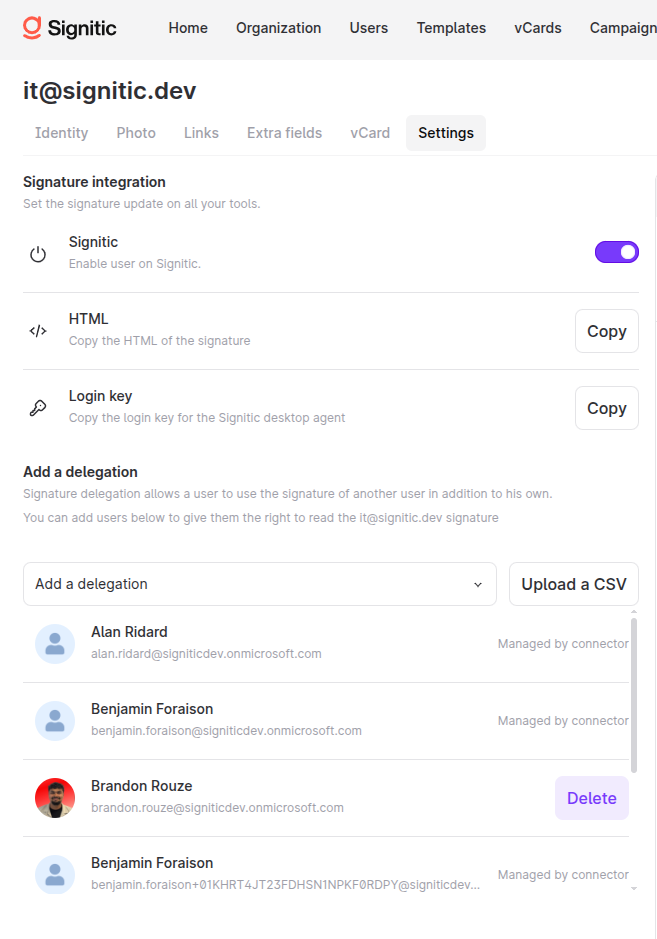
Manual delegation. On the shared mailbox's user record, open the Settings tab, add the email addresses of the authorized users to the delegation list and save (Delegate a signature to another user). Keep in mind that a delegation added in Signitic grants no send rights in Microsoft 365. The two have to match.
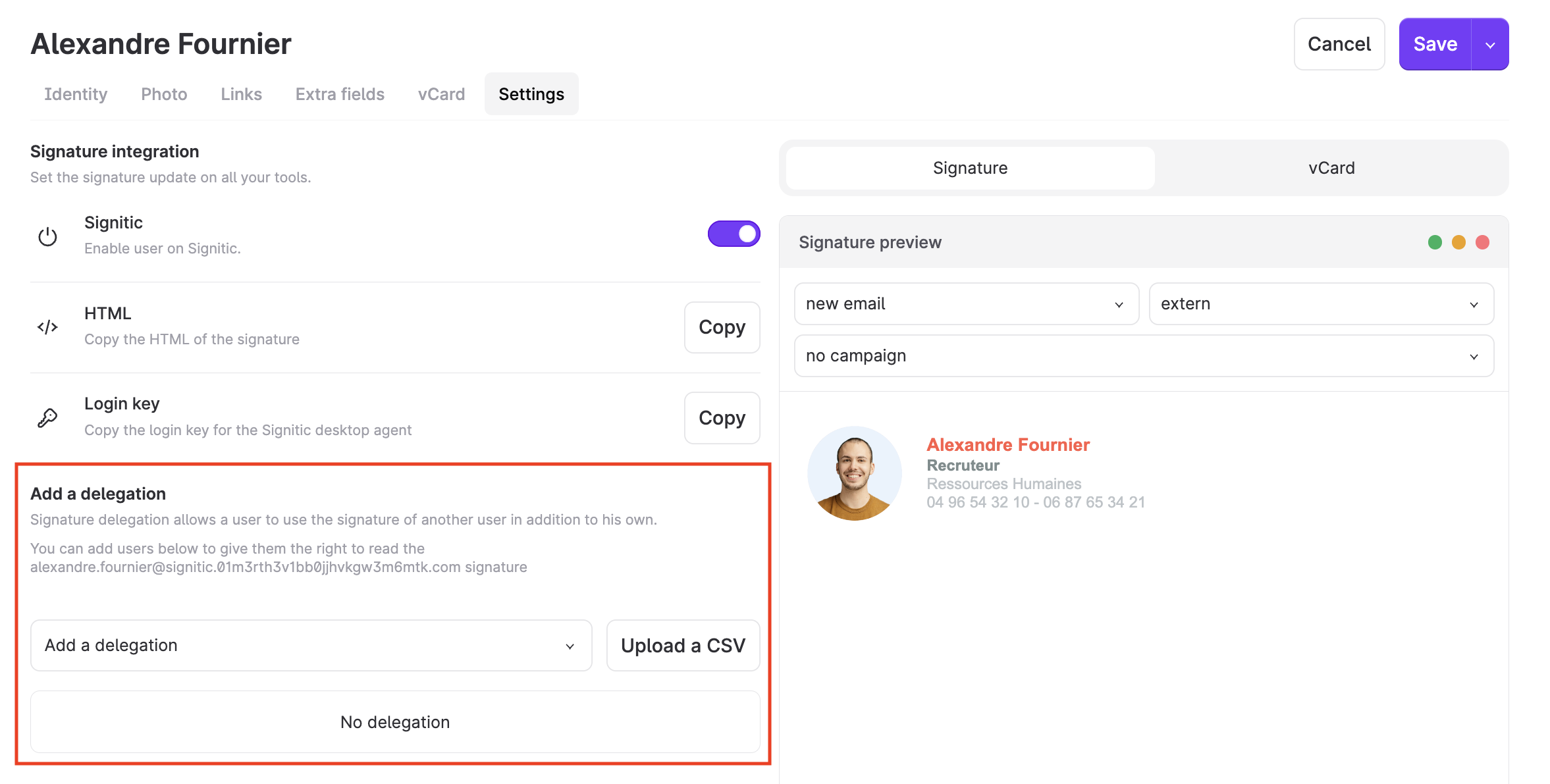
Once shared mailboxes number in the dozens, the sync really earns its keep. Someone changes teams, their permission is removed in Microsoft 365, and they also lose access to their former team's signature in Signitic. Nobody had to remember to do it.
Showing the sender's name and photo in the signature
For a personal signature, open the template assigned to the shared mailbox, edit the text block that contains the first and last name, and replace {{firstname}} {{lastname}} with {{main.firstname}} {{main.lastname}}. The "main." prefix pulls the primary user's data, meaning the person who is writing (Microsoft 365 shared mailbox guide).
The same "main." prefix works for the other profile fields, such as position, email, mobile, phone, department and the additional fields (Use your user's information on a shared mailbox). An option in the profile photo block also lets you show the user's photo instead of the mailbox's. There's no need to rename the shared mailbox in Microsoft, since one template covers the whole team.
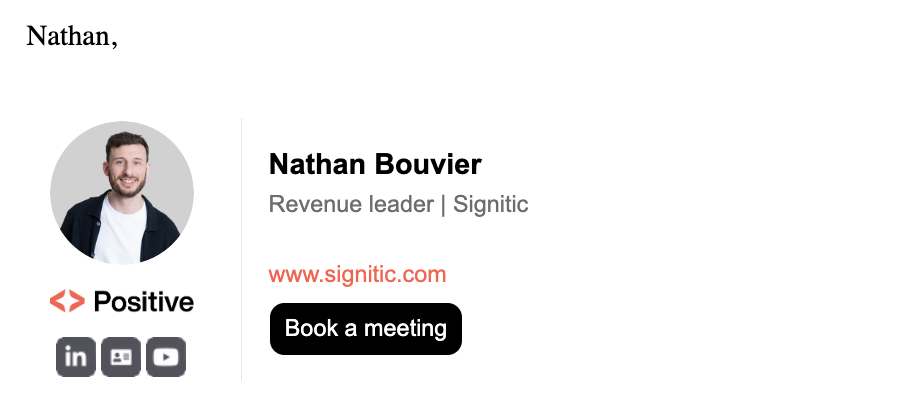
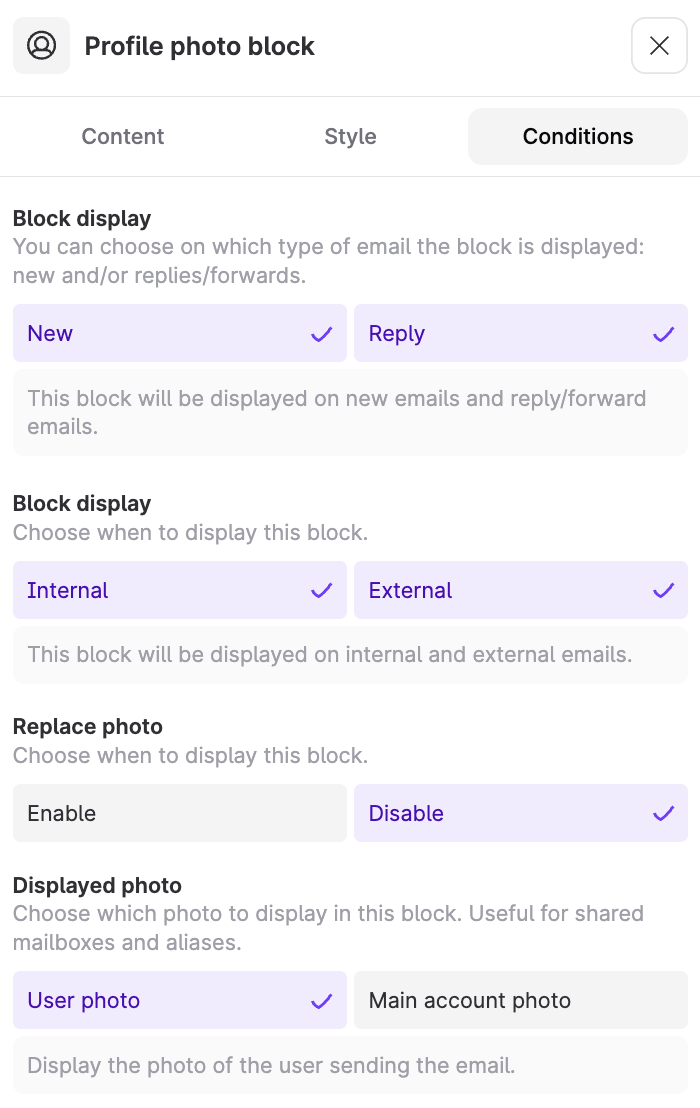
Last step, test with two people. Each one creates a message from their personal account, picks the shared address in the "From" field and checks that their own name appears. Test a reply to a message received in the shared mailbox too.
Setting up a Microsoft 365 alias signature with Signitic
By default, Signitic's source connectors only import the primary addresses from your directory. To assign a signature to an alias, first turn on alias import in Settings > Connectors, selecting Microsoft 365 (or Google Workspace), then the "Email Alias" option under Filters (Enable / disable aliases). This option only exists for those two connectors.
[Screenshot to capture during the Product test: "Email Alias" option under the Microsoft 365 connector Filters]
Once imported, each alias becomes a separate user in Signitic. It can have its own data and its own template, which settles the question raised earlier, since contact@ can carry a sales signature while Julie's primary address keeps hers.
One risk remains. The alias data can go stale while the primary address data changes. Alias rewriting, which you turn on in Connectors, updates the alias data every time the primary user is changed. Julie gets a new title, her alias follows.
The Outlook add-in supports alias management. With the Signitic agent, the other deployment option for Outlook, it's done manually, according to the add-in prerequisites comparison.
Outlook client compatibility with the Signitic add-in
The Signitic add-in is available for Outlook and Outlook on the web users with a Microsoft 365 subscription (Should I use the add-in or the Agent?). The comparison table published in the add-in prerequisites details coverage by client:
On Windows, the add-in requires at least Outlook 16.0.14026.20000 on the Current Channel, or 16.0.14131.20000 on the Monthly Channel. On Mac, the new interface is supported from version 16.38.506.
On Outlook mobile, the Outlook Mobile Signature guide adds two points: internal/external conditions aren't supported yet, and the address connected to Signitic must be the main account in the app.
Signitic licenses: how shared mailboxes and aliases are counted
The rule is simple: a Signitic user is an email address synced into Signitic, and aliases and shared mailboxes are counted as separate users. As the pricing page puts it, the number of licenses corresponds to the number of email addresses you can assign a signature to.
In practice, a team of ten people with a support@ mailbox and two sales aliases, all with their own signature, adds up to thirteen licenses. Alias support is included in all three plans (Free, Standard and Custom). The Free plan covers up to 19 licenses, Standard and Custom are unlimited.
Before turning on alias import, take stock of the aliases in your directory, because every imported alias consumes a license, including those that only ever receive mail.
On the Microsoft side, a useful reminder for budgeting. The shared mailbox itself doesn't need a Microsoft 365 license up to 50 GB, but everyone who uses it needs a licensed Exchange Online mailbox (Microsoft documentation).
Known limitations and troubleshooting for shared mailbox signatures
The dedicated Signitic guide documents how far the setup goes and what to check when the signature doesn't show up as expected.
Limitations to know:
- The setup described here covers displaying the signature while writing, with the Outlook add-in. Adding a signature after sending through a server rule isn't covered by that guide.
- A shared mailbox added as a separate account in Outlook can prevent the expected personal signature from appearing.
- Delegation sync only applies to Microsoft 365 connectors and isn't instant: changes appear after the next successful import.
- Add-in support varies depending on the Outlook client and how the mailbox is opened.
Symptoms and their causes:
- The mailbox name appears instead of the person's: check the "main." attributes and the template actually assigned to the mailbox.
- The name is empty or wrong: check the user's personal data in Signitic and the main account used in Outlook.
- No signature shows up: check the add-in, the delegation in Signitic and how the mailbox is opened.
- Sending is rejected: Full Access alone isn't enough, the user needs Send As or Send on Behalf.
If the Signitic add-in disappears from Outlook, the guide to clearing Outlook caches suggests three checks: test the signature in Outlook on the web to see whether the issue comes from the installed app, close any duplicate Outlook windows, then clear the add-in cache (the files in the "Wef" folder on Windows).
If behavior varies from one computer to another, send support the Outlook version, the personal and shared addresses, a screenshot of how the mailbox was added and your test results.
Shared mailbox signature and Microsoft 365 aliases: FAQ
Can a shared mailbox have its own signature?
Yes, with Signitic. The shared mailbox is imported as a user and gets its own signature template. The Outlook add-in displays it when an authorized user writes from that address. Without a centralized management tool, each user has to create the signature in their own Outlook settings.
How can the signature show the name of the person writing from a shared mailbox?
Replace {{firstname}} {{lastname}} with {{main.firstname}} {{main.lastname}} in the template assigned to the shared mailbox. The same template then displays the name of each person who writes, with no change to the mailbox in Microsoft 365.
What are aliases in Microsoft 365?
An alias is an additional address attached to a user's mailbox. Messages sent to the alias land in the same mailbox. In Signitic, an imported alias becomes a separate user, with its own signature if needed.
Can a shared mailbox be signed into?
Microsoft advises against it: the account behind a shared mailbox has a system-generated password that isn't meant to be used, and Microsoft recommends blocking its sign-in. Users access the mailbox through their own account and delegated permissions.
Why doesn't the signature appear when sending from a shared mailbox in Outlook?
Three things to check first: is the Signitic add-in active, does the delegation exist in Signitic, and was the mailbox added as a shared folder rather than as a separate account?
Does a shared mailbox or an alias use a Signitic license?
Yes. Signitic counts aliases and shared mailboxes as separate users, so each one with a signature takes a license.
Where is the data processed by Signitic hosted?
In France, in compliance with GDPR, according to Signitic's Security page. Signitic has no access to the body of your emails and is ISO 27001 certified.
Send As or Send on Behalf: which one should you use?
Send As if the shared address should appear on its own as the sender. Send on Behalf shows the user as sending on behalf of the mailbox. Signitic's delegation sync imports both permissions.
Shared mailboxes as polished as individual signatures
A well-signed shared mailbox rests on three settings that have to line up: the permissions in Microsoft 365, a mailbox opened as a shared folder, and a Signitic template that knows who is writing. Aliases take less effort, but some discipline about what you import, since every address counts as a license.
It's the kind of detail that separates a consistent brand from a brand that's consistent "except in support". To extend the approach to every employee, our guide to email signature management covers the full picture.
{{CTA-DEMO}}